


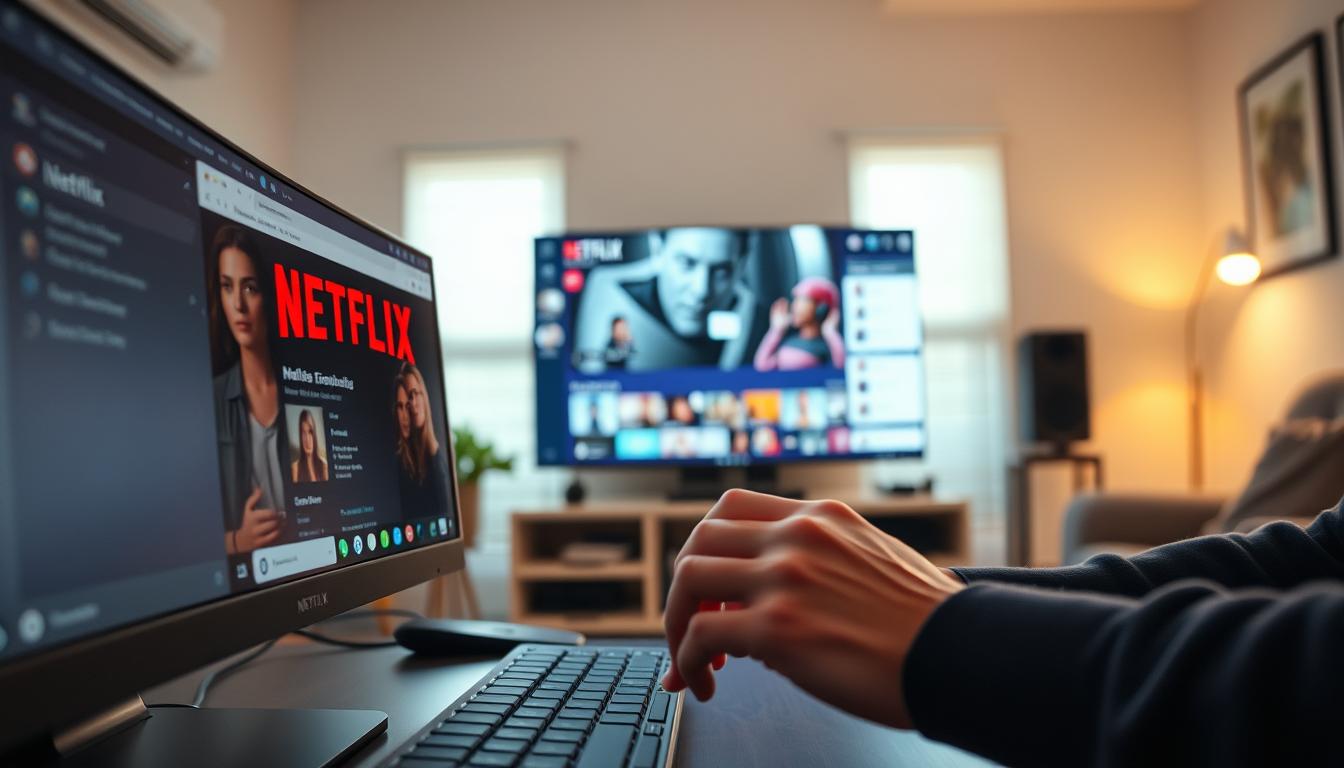
Ever tried hosting a virtual movie night only to face technical hiccups? Imagine seamlessly sharing your favorite Netflix shows with friends on Discord—no third-party apps, no lag, just synchronized entertainment. This guide unlocks the hidden potential of Discord’s screen-sharing features, turning it into a private theater for your next watch party.

With over 300 million users, Discord isn’t just for gaming. Its robust tools for voice, video, and screen sharing make it ideal for group streaming. But without proper setup, you might encounter issues like a black screen or audio delays. That’s where hardware acceleration settings and precise configuration come into play.
This walkthrough covers everything from registering Netflix as a “game” in Discord to optimizing performance. Learn how to navigate menus like the three dots in the top-right corner or the gear icon in the bottom-left. Troubleshoot common problems and ensure smooth playback every time.
Key Takeaways
- Use Discord’s screen share feature to host Netflix watch parties with friends.
- Adjust hardware acceleration settings to prevent playback issues.
- Locate critical menus like the three dots in the top-right corner for quick setup.
- Register Netflix as a “game” in Discord for seamless integration.
- Solve common problems like black screens during streaming.
Getting Started with Netflix and Discord
Preparing your digital space is the first step toward a flawless group viewing experience. Begin by ensuring your Netflix account is active and accessible through a modern web browser like Chrome or Firefox. Avoid using mobile apps, as desktop browsers offer better compatibility for screen sharing.
Setting Up Your Netflix Account and Browser
Navigate to Netflix’s website and log in. If using Chrome, click the three dots top-right to access browser settings. Enable hardware acceleration if available—this boosts video decoding for smoother playback. Clear cache files and disable conflicting extensions that might interrupt streaming.
Creating or Joining a Discord Server
Open the Discord app and locate the plus icon in the left sidebar to create a new server. Name it appropriately (e.g., “Movie Nights”) or join an existing community using an invite link. Use the gear icon in the bottom-left corner to verify voice channel permissions, ensuring participants can view shared content.
Pro Tip: Test both platforms separately before combining them. A stable internet connection and updated software prevent common issues like black screen errors during playback.
How to stream netflix on discord
Hosting synchronized watch parties requires precise coordination between platforms. Start by launching your preferred browser—Chrome or Firefox work best—and log into your Netflix account. Avoid mobile apps, as desktop browsers provide superior screen-sharing performance.
Launching Netflix and Discord on Your Device
On Windows or macOS, open Netflix in a separate tab. Ensure you’re signed in and ready to play content. Next, launch the Discord application and navigate to your chosen voice channel. If joining an existing group, verify permissions under the server settings to avoid access issues.

Using Discord’s Screen Share Feature
Click the screen share icon (resembling a monitor) in Discord’s voice channel menu. Choose the browser tab running Netflix, then select Go Live. Adjust resolution to 720p or 1080p and set frames per second to 30 for balanced quality. Lower these settings if participants report lag.
Pro Tip: Close background apps to free up system resources. A wired internet connection minimizes pixelation during high-action scenes. Test audio synchronization by playing a trailer before starting the main event.
Managing Hardware Acceleration Settings
Hardware acceleration boosts performance by offloading tasks to your device’s GPU. While helpful for gaming, it can clash with video streaming, causing black screen errors or audio mismatches. Adjusting these settings often resolves playback issues during group viewing sessions.
Disabling Hardware Acceleration in Discord
Open Discord and click the gear icon near the bottom-left corner. Navigate to App Settings > Advanced. Toggle off Hardware Acceleration under the System section. Restart the app for changes to take effect.
Turning Off Hardware Acceleration in Your Browser
In Chrome or Edge, click the three dots top-right and select Settings. Type “hardware acceleration” in the search bar. Toggle off Use hardware acceleration when available. For Firefox, find this option under Settings > General > Performance.
These adjustments reduce conflicts between Discord and your browser. Test streaming afterward—most users report immediate improvements in video clarity and synchronization. If issues persist, check for software updates or try a different browser.
Advanced Tips for a Better Streaming Experience
Elevate your group viewing sessions with precision adjustments that enhance visual clarity and reliability. Fine-tuning technical elements ensures smooth playback and minimizes disruptions during shared entertainment.
Optimizing Stream Resolution and Frame Rate
Higher resolutions demand more bandwidth. For most users, 720p at 30fps strikes a balance between quality and stability. Discord Nitro subscribers can unlock 1080p/60fps streaming—ideal for fast-paced action scenes.
| Resolution | Frame Rate | Best For | Nitro Benefit |
|---|---|---|---|
| 480p | 30fps | Slow connections | N/A |
| 720p | 30fps | Group viewing | Priority bandwidth |
| 1080p | 60fps | Solo streams | HD streaming |
Troubleshooting the Black Screen Issue
A blank display often stems from conflicting hardware acceleration settings. Update graphics drivers through your device manager before streaming sessions. If the problem persists:
- Disable acceleration in both browser and app settings
- Switch from Chrome to Firefox (or vice versa)
- Verify screen-sharing permissions in voice channels
Test these fixes with short video clips before hosting full-length events. Minor adjustments to resolution or frame rate often resolve persistent display errors.
Conclusion
Transforming Discord into a virtual theater requires careful setup but rewards users with seamless group entertainment. Prioritize browser preparation by enabling hardware acceleration adjustments and verifying voice channel permissions. Always test settings like resolution and frame rates before starting a session to avoid disruptions.
Addressing the black screen error often involves toggling system preferences in both Discord and your browser. Navigate to the three dots top-right in Chrome or the gear icon in Discord’s bottom-left corner for critical fixes. These steps ensure crisp visuals and synchronized audio during shared viewing.
Experiment with advanced configurations like 720p resolution for larger groups or wired connections for stability. Share your optimized setup with friends to create memorable watch parties. Bookmark this guide for quick troubleshooting and enjoy your favorite series without technical hiccups.
FAQ
Why does Netflix show a black screen when streaming on Discord?
A black screen often occurs due to hardware acceleration conflicts. Disable this feature in Discord’s settings under App Settings > Appearance and in your browser via the three dots (top-right corner) > Settings > System.
How do I adjust Discord’s screen share resolution for better quality?
During a stream, click the gear icon in the screen share menu. Select 720p or 1080p under resolution and set the frame rate to 30 or 60 FPS for smoother playback.
Can I watch Netflix with friends on a Discord server?
Yes. Start a voice channel, use the Screen Share button, and select your browser or Netflix app window. Ensure hardware acceleration is turned off to avoid playback issues.
What if audio doesn’t sync during a Netflix stream on Discord?
Restart both applications and verify system audio settings. Lowering the stream resolution or closing background apps can also stabilize performance.
Does Discord allow Netflix streaming without a browser?
Yes. Launch the Netflix app on your device, then share your screen via Discord’s Go Live feature. Prioritize windowed mode to prevent accidental tab closures.
How do I disable hardware acceleration in Google Chrome?
Navigate to Chrome’s Settings > Advanced > System and toggle off Use hardware acceleration when available. Relaunch the browser for changes to apply.
Why is Netflix audio missing during a Discord stream?
Enable Sound Sharing in Discord’s screen share menu. If issues persist, check Netflix’s audio settings or switch to a different browser like Firefox.
Can I host a Netflix watch party on a private Discord server?
Absolutely. Create a dedicated voice channel, invite friends, and use screen sharing. For synchronized viewing, coordinate play/pause actions manually.
 No products in the cart.