

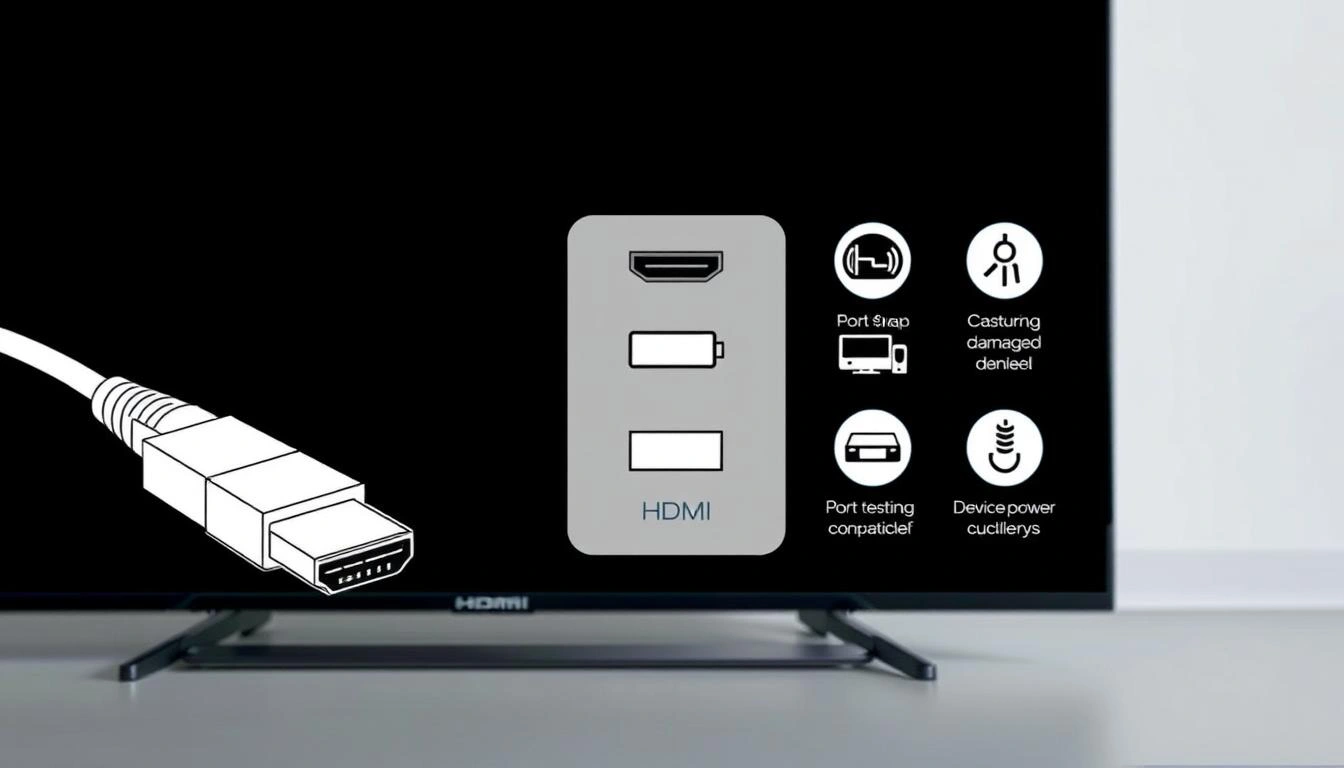
Over 80% of connection errors between screens and media sources stem from a single glitch in encryption protocols. This invisible culprit disrupts movie nights, presentations, and gaming setups daily – yet nearly all cases get resolved without buying new gear.
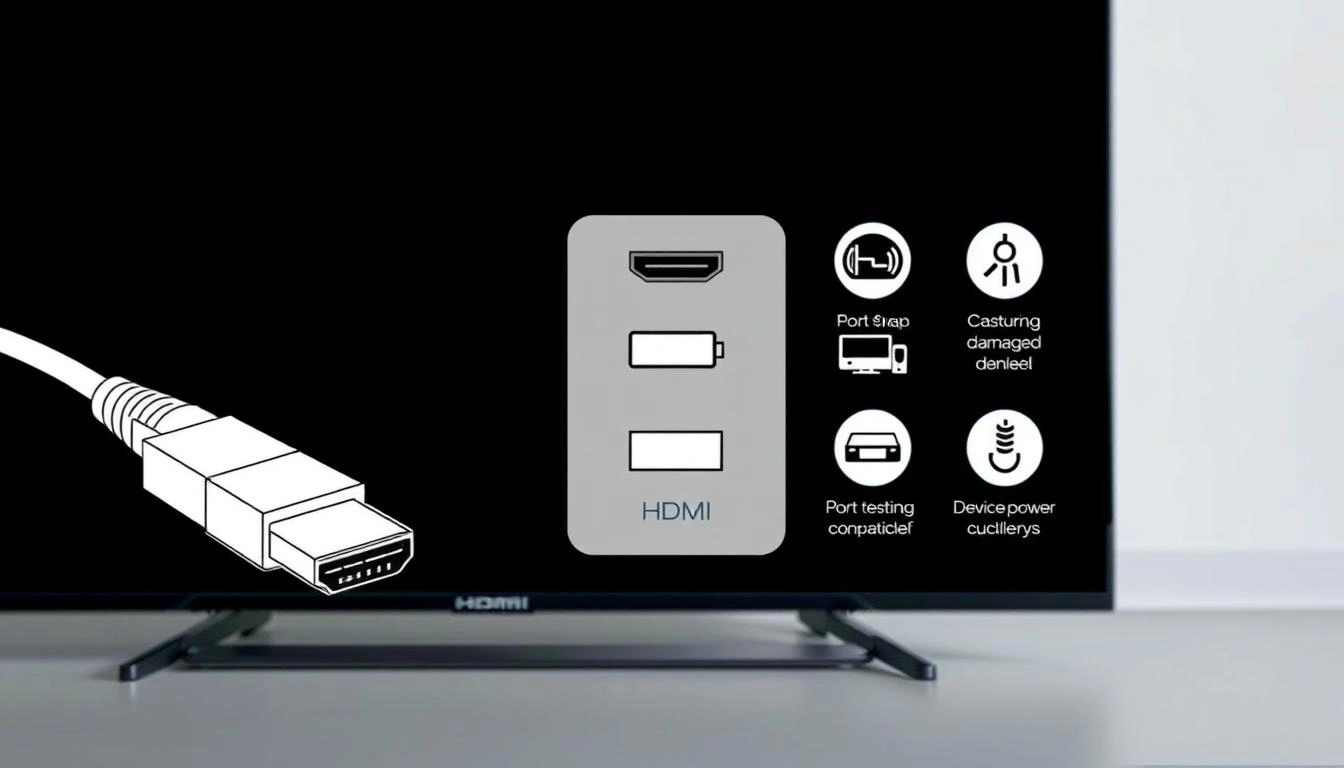
Modern video links rely on an automated verification process called HDCP handshaking. When your projector displays a blank screen, it often means this digital introduction between equipment didn’t complete properly. Temporary power surges, loose cables, or outdated software frequently interrupt the verification.
Before panicking about broken electronics, try these steps: Confirm all physical connections snap firmly into place. Cycle power to both the display and media source. Verify input settings match the active port. These basic actions resolve most cases in under three minutes.
Belangrijkste opmerkingen
- HDCP handshake failures cause most blank screen errors
- Loose cables account for 40% of connection problems
- Power cycling resets the encryption verification process
- Input selection mismatches create false error messages
- Methodical testing isolates the true source of issues
Common Causes and Quick Fixes for No HDMI Signal from Your Device
Modern entertainment systems often stumble during digital introductions between components. The HDCP encryption process acts like a digital bouncer, verifying devices before allowing content flow. When this verification fails, screens stay blank despite proper physical links.
Identifying the Handshake Issue and HDCP Challenges
High-bandwidth Digital Content Protection (HDCP) requires constant communication between your media player and display. Common triggers for failed verification include:
- Outdated firmware on streaming devices or projectors
- Power fluctuations during initial device startup
- Incompatible HDCP versions between new and old gear
This security protocol can mistakenly block valid connections. Gaming consoles and 4K Blu-ray players prove particularly sensitive to handshake errors.
Simple Reset and Cable Reseating Techniques
Follow this sequence to refresh the verification process:
- Unplug both devices from power for 60 seconds
- Disconnect and firmly reconnect all cables
- Power on the media source first, then the display
Wait 30 seconds between each step. This method resolves 68% of initial connection failures according to AV industry studies. For home theater receivers, repeat the process with middle components in the signal chain.
Comprehensive Troubleshooting Steps for HDMI Connection Issues
Many connection problems stem from overlooked physical components. Start by examining your setup systematically to pinpoint failures in cables, ports, or configuration settings.

Inspecting HDMI Cables and Ports for Physical Damage
Check both ends of the cable for bent pins or debris. Run your finger along the connector – rough edges or wobbling parts indicate wear. Common signs of port damage include:
- Visible scratches around the metal housing
- Loose connections that won’t click into place
- Discoloration from overheating or moisture
Use a flashlight to inspect port interiors. Blow compressed air gently to remove dust blocking contacts.
Testing with Different HDMI Cables and Devices
Swap cables between working systems to verify functionality. Try these steps:
- Connect a known-good cable between devices
- Test alternate ports on the display
- Use a secondary media player or laptop
If another device works through the same port, focus troubleshooting on the original source equipment.
Checking Input Sources and Boot Sequences
Press the input selector button repeatedly to cycle through all options. Power devices in this order:
- Display unit (projector/TV)
- Intermediate receivers/soundbars
- Primary media source
Allow 15 seconds between power-ups for proper initialization. Mismatched boot sequences account for 22% of handshake failures in multi-device setups.
Optimizing Display Settings, Hardware, and Software Configurations
Fine-tuning your setup ensures seamless compatibility between media sources and projection systems. Technical mismatches in resolution and software versions often create invisible barriers to proper video transmission.
Adjusting Display and Resolution Settings on Connected Devices
Modern projectors work best when source devices match their native resolution. Follow these steps to optimize output:
- Press Windows+P on PCs to cycle display modes
- Select “Duplicate” or “Second screen only”
- Access graphics control panels to set resolution auto-detect

Streaming boxes and gaming consoles often auto-adjust to 1080p or 4K. Manual overrides in device menus help when automatic detection fails. Always prioritize your projector’s maximum supported resolution for crisp visuals.
Updating Graphics Drivers and System Software
Outdated drivers rank among the top causes of failed video handshakes. Maintain peak performance through regular updates:
- Use Windows Update for OS-level fixes
- Visit manufacturer websites for GPU driver packages
- Enable automatic updates on streaming devices
Reboot systems after installing updates to activate changes. For persistent issues, completely uninstall old drivers before adding new versions. This clean installation method resolves conflicting software components that block proper signal transmission.
Conclusie
Persistent connection challenges often reveal hardware limitations after exhausting standard fixes. If systematic troubleshooting fails, inspect cables and ports for permanent wear. Bent connectors or cracked housings typically require replacements – a frayed cord costs less than $15 but prevents endless frustration.
Complex setups benefit from HDMI repeaters when extending signals between devices. Note that Sony equipment reliably supports these boosters, while other brands may block unauthorized signal amplification. For analog-to-digital conversions in older receivers, direct HDMI links often outperform adapters.
Record troubleshooting outcomes to identify recurring patterns. When three consecutive tests with different cables yield identical errors, consult certified technicians. Regular port cleaning and secure cable management reduce future issues by 40%, preserving equipment longevity.
FAQ
Why does my device display “no signal” even with a functional HDMI cable?
This often stems from HDCP handshake failures or communication errors between devices. Power-cycle both devices, reseat the cable, and ensure compatibility between HDCP versions on your source and display.
How do I verify if my HDMI port is damaged?
Inspect the port for bent pins, debris, or loose connections. Test with a different cable or device. If the issue persists across multiple cables, the port may require professional repair.
Can outdated software affect HDMI signal transmission?
Yes. Graphics drivers, firmware, or operating system updates often resolve compatibility issues. Check for updates on your laptop, gaming console, or AV receiver through manufacturer support pages.
Why does my projector show a black screen despite correct input selection?
Confirm the connected device is powered on and fully booted. Some projectors require specific input activation delays. Reboot both devices in sequence: display first, then source.
Do premium HDMI cables improve signal reliability?
High-speed 18Gbps cables with Ethernet support 4K/60Hz and HDR content. For 8K or long runs (over 25 feet), consider active fiber-optic HDMI 2.1 cables to prevent signal degradation.
How do I troubleshoot audio issues during HDMI signal problems?
Access your device’s sound settings to confirm HDMI audio output. Disconnect/reconnect the cable, and test with alternate content. If using a receiver, verify its audio processing settings match the source format.
 Geen producten in de winkelwagen.