


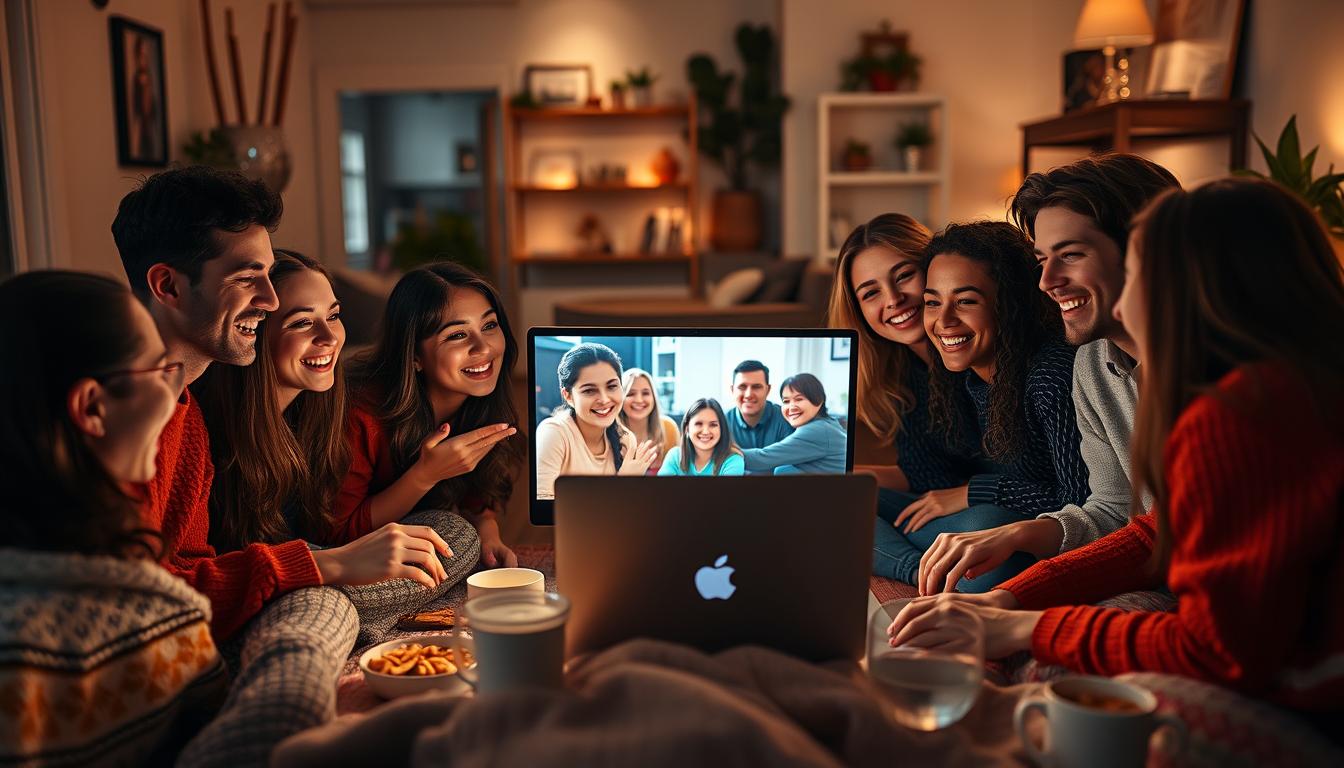
Gathering for movie nights doesn’t require being in the same room anymore. With synced streaming and group chats, you can share reactions in real time while watching your favorite shows. Imagine laughing at the same jokes or gasping at plot twists with pals across the country — all from your couch.

Tools like Teleparty (formerly Netflix Party) ensure everyone’s screen stays perfectly aligned, while platforms like WEVER add private rooms and lively chat features. You’ll need an active subscription to the streaming service, but setting things up takes minutes. This guide walks you through every step, from checking accounts to creating cozy viewing spaces.
Want to keep things fun and safe? We’ll share tips for smooth gatherings, like setting chat rules and avoiding spoilers. Whether you’re planning a rom-com marathon or a thriller binge, staying connected has never been easier — or more entertaining.
Key Takeaways
- Synced streaming lets everyone watch shows simultaneously, no matter where they are.
- Third-party tools like Teleparty and WEVER add group chats and private viewing rooms.
- An active subscription to the streaming service is required for all participants.
- Customizable chat features help maintain engagement and avoid distractions.
- Simple setup steps ensure you can start your virtual hangout quickly.
Introduction to Virtual Movie Nights
Technology now bridges distances, turning solo streaming into shared cinematic experiences. Virtual movie nights let groups enjoy films and shows simultaneously through synced playback, even when miles apart. Born during the 2020 global shift toward remote connections, these digital gatherings remain popular for their blend of convenience and camaraderie.
Traditional couch hangouts evolved into browser-based video sessions where reactions flow in real time. Platforms like Teleparty synchronize playback across devices while integrating group chat features. This means everyone sees the same plot twists or punchlines simultaneously — no spoilers or awkward pauses.
| Aspect | Traditional Nights | Virtual Nights |
|---|---|---|
| Location | Same room | Anywhere online |
| Sync Accuracy | Automatic | Tool-dependent |
| Interaction | Face-to-face | Text/voice chat |
| Setup | Snacks & seats | Stable internet + browser |
For smooth streaming, ensure a reliable internet connection and updated browser. Most tools work without downloads, but quality hinges on bandwidth. Built-in chat keeps conversations lively without interrupting the movies.
Our guide simplifies hosting glitch-free parties, from tech checks to engagement tricks. Whether planning a comedy marathon or drama binge, you’ll find actionable steps to make every virtual night memorable.
How to Initiate Your Netflix Watch Party
Starting a shared viewing experience requires minimal prep work. Let’s ensure your setup is ready for seamless group streaming.
Confirm Account Access and Device Readiness
First, verify your subscription status. Log into your streaming account and check for active billing under “Account Settings.” Premium plans allow up to four simultaneous screens — perfect for group sessions.
Next, confirm browser compatibility. Tools like Teleparty work best on Chrome, Edge, or Opera. Update your browser if needed, as outdated versions may cause lag.
Adding the Sync Tool
Visit your browser’s extension store and search for Teleparty. Click “Add to Browser” — it’s free and takes seconds. During installation, review the privacy policy to understand data handling practices.
Once installed, a purple TP icon appears in your toolbar. This controls playback sync and chat features. If the extension glitches, clear your cache or reinstall it.
Pro tip: Share these steps with guests beforehand. Everyone needs the same setup for watch together functionality. Now you’re ready to press play in unison!
Setting Up Your Viewing Environment
Crafting the perfect group viewing setup starts with two essentials: smooth streaming and controlled access. A stable connection keeps scenes crisp, while private rooms ensure only invited friends join the fun.
Optimizing Your Internet Connection and Device
Buffering ruins momentum. Use tools like WiFi Explorer to scan networks and choose the strongest signal. Close background apps — they hog bandwidth needed for HD movie show quality. For wired setups, Ethernet cables offer steadier speeds than Wi-Fi.
Adjust streaming settings to match your internet plan. Most platforms auto-detect speed, but manual HD selection prevents sudden drops. Keep devices updated and cool — overheating throttles performance during marathons.
Creating a Private Room and Shareable Invite Link
Privacy matters. After launching your synced session, toggle “private room” in the extension menu. This locks the space until you share a unique link. Send invites via direct message instead of public posts to avoid randoms crashing your live chat.
Teleparty generates links instantly. Click the purple icon, start playback, then copy-paste the URL to friends. Remind guests to use the same streaming account tier for synced scenes without delays.
Pro tip: Test settings with one friend first. Quick fixes now save group troubleshooting later!
Step-by-Step Guide to a Successful netflix watch party
Hosting a flawless group viewing session combines preparation and creativity. Focus on alignment between participants’ preferences and technical setups to ensure everyone stays engaged from previews to credits.

Choosing the Perfect Movie or Show
Begin by creating a collaborative shortlist. Share a poll via messaging apps or use platforms like Letterboxd to gather votes. Consider genres that suit all viewers — comedies or light dramas often work best for mixed groups. Confirm everyone has access through their Netflix subscription to avoid last-minute hiccups.
Once decided, double-check runtime. A 90-minute film fits casual evenings, while multi-episode binges need planned breaks. Pro tip: Avoid spoiler-heavy titles if some friends haven’t seen them!
Coordinating Playback Controls and Chat Rules
Open your streaming service and load the chosen title. Click the Teleparty extension icon, then click start to generate an invite link. Share this URL directly with attendees — never post it publicly. Designate one person to manage pauses if someone needs a snack break.
Before hitting play, agree on chat guidelines. For example: Use emojis for reactions during tense scenes, or keep side conversations in a separate thread. Mute notifications to minimize distractions. Tools like Teleparty let you customize chat colors or nicknames for clarity.
Finally, send a quick reminder 10 minutes before showtime. A smooth experience hinges on synced starts and mutual respect for the plan. With these steps, your together friends event becomes a shared highlight reel.
Tips for Engaging Virtual Watch Parties
Transform silent streams into lively events by mastering your group’s digital dialogue. Studies show 78% of Teleparty users credit active chat features for memorable entertainment experiences. A few intentional strategies can turn passive viewers into enthusiastic participants.
Encouraging Live Chat and Fun Interactions
Kick things off with themed icebreakers. Ask guests to share their favorite movie snack or predict plot twists before pressing play. These prompts spark instant camaraderie between friends family members.
Emojis and GIFs keep conversations dynamic. React to jump scares with 👻 or drop popcorn 🍿 emojis during funny scenes. Teleparty’s extension supports custom nicknames and colorful text — perfect for distinguishing voices in fast-moving discussions.
Test your setup early. Send a trial link to confirm everyone’s chat works. Bonus idea: Prepare trivia questions or behind-the-scenes facts to share during slower scenes. This maintains energy without disrupting key moments.
“Groups using coordinated emoji reactions reported 40% longer engagement during streams.” — Teleparty User Survey, 2023
Involve quieter attendees by tagging them in lighthearted polls. Ask which character should make a surprise return or vote on post-movie activities. Small gestures ensure all voices contribute to the collective fun.
Enhancing the Experience with Additional Tools
Elevate your virtual gatherings by integrating specialized apps and social platforms designed for seamless interaction. These tools expand functionality beyond basic syncing, offering screen-casting upgrades and global community features.

Boosting Streaming with Apps Like JustStream
JustStream transforms any device into a cinematic hub. This lightweight app casts content to Chromecast, Apple TV, or smart displays — perfect for groups craving theater-quality playback. Unlike basic mirroring, it maintains HD resolution while syncing audio across devices.
Installation takes seconds via your preferred browser. JustStream works with existing account logins, eliminating extra sign-ups. Its privacy policy clearly states data isn’t stored or shared, making it safer than many casting alternatives.
Leveraging Social Platforms such as WEVER
WEVER combines synchronized viewing with global networking. Users join themed rooms — from anime clubs to documentary societies — while enjoying built-in trivia games and reaction polls. Its end-to-end encryption ensures privacy during lively streaming sessions.
Create personalized spaces by linking your account to Spotify or Twitch. WEVER’s browser-based design means no downloads, though mobile apps offer added convenience. Pro tip: Pair it with Teleparty for dual-screen setups where one device handles playback and another manages social features.
Experiment with these apps to discover hybrid setups that match your group’s vibe. Whether amplifying visuals through JustStream or diving into WEVER’s interactive communities, layered tools turn simple movie nights into unforgettable shared adventures.
Privacy and Security Considerations
Sharing laughs during a show is fun, but protecting personal data should never be an afterthought. Third-party tools like Teleparty and WEVER handle sensitive details, from login credentials to chat histories. Always prioritize platforms with transparent policy practices to keep your group’s experience secure.
Understanding Data Protections
Before installing any device extension, review its policy on data collection. Reputable services like WEVER use end-to-end encryption for chats, while Teleparty anonymizes viewing habits. Avoid apps that sell user analytics or store payment details unnecessarily.
Update your device software regularly to patch vulnerabilities. Simple things like enabling two-factor authentication on streaming accounts add extra security layers. Pro tip: Use a VPN during sessions to mask IP addresses from potential snoopers.
Trusted apps minimize risks by limiting data access. For example, Flickcall’s policy restricts third-party sharing and deletes chat logs after 24 hours. Always verify if a tool complies with regulations like GDPR or CCPA — clear signs they value people’s privacy.
Stay informed about policy changes by subscribing to service newsletters. Regular updates ensure your device settings align with the latest safeguards. With these steps, your virtual experience stays joyful — and fiercely protected.
Conclusion
Virtual gatherings redefine how we share stories and laughter across miles. By confirming secure access to streaming accounts and browser compatibility, you lay the groundwork for glitch-free sync. Adding a simple toolbar icon transforms solo viewing into collective adventures where reactions unfold in real time.
Remember three essentials: verify subscription tiers for simultaneous access, test interface icons like Teleparty’s purple control panel, and share private links cautiously. These steps ensure smooth playback while keeping unwanted guests out.
Enhance engagement through visual tools — colorful chat themes or trivia bots turn passive watching into interactive fun. Most platforms prioritize user safety with encrypted connections and clear access permissions.
Ready to launch your next cinematic hangout? Grab snacks, hit the icon, and press play. Your couch becomes a portal to shared memories — no travel required.
FAQ
Do I need a specific subscription plan to host a virtual movie night?
You’ll need an active streaming service account, but most third-party tools like Teleparty work with standard plans. Always check compatibility with your browser and device before starting.
Can everyone join if they’re using different devices?
Yes! Guests can sync playback on laptops, tablets, or smart TVs as long as they install the required browser extension and use supported platforms like Chrome or Edge.
How do I share an invite link securely?
After creating your private room, generate a unique link through the extension. Share it directly via messaging apps or email to keep your session secure and avoid unwanted guests.
What if playback isn’t synced between viewers?
Ensure all participants have stable internet connections. Use the “pause” or “resync” feature in tools like Teleparty to realign timing, and close bandwidth-heavy apps for smoother streaming.
Are live chat conversations stored after the party ends?
Most extensions don’t save chat logs permanently, but review the privacy policy of your chosen tool. For added security, avoid sharing personal details during conversations.
Can I use apps like JustStream for better video quality?
Absolutely! Third-party apps enhance streaming performance and screen-sharing capabilities. Just confirm they’re compatible with your device and won’t interfere with synced playback.
How do I keep the group engaged during the movie?
Set lighthearted chat rules, use themed emojis, or plan quick trivia breaks. Encourage reactions in real time to mimic the energy of an in-person gathering.


 No products in the cart.