

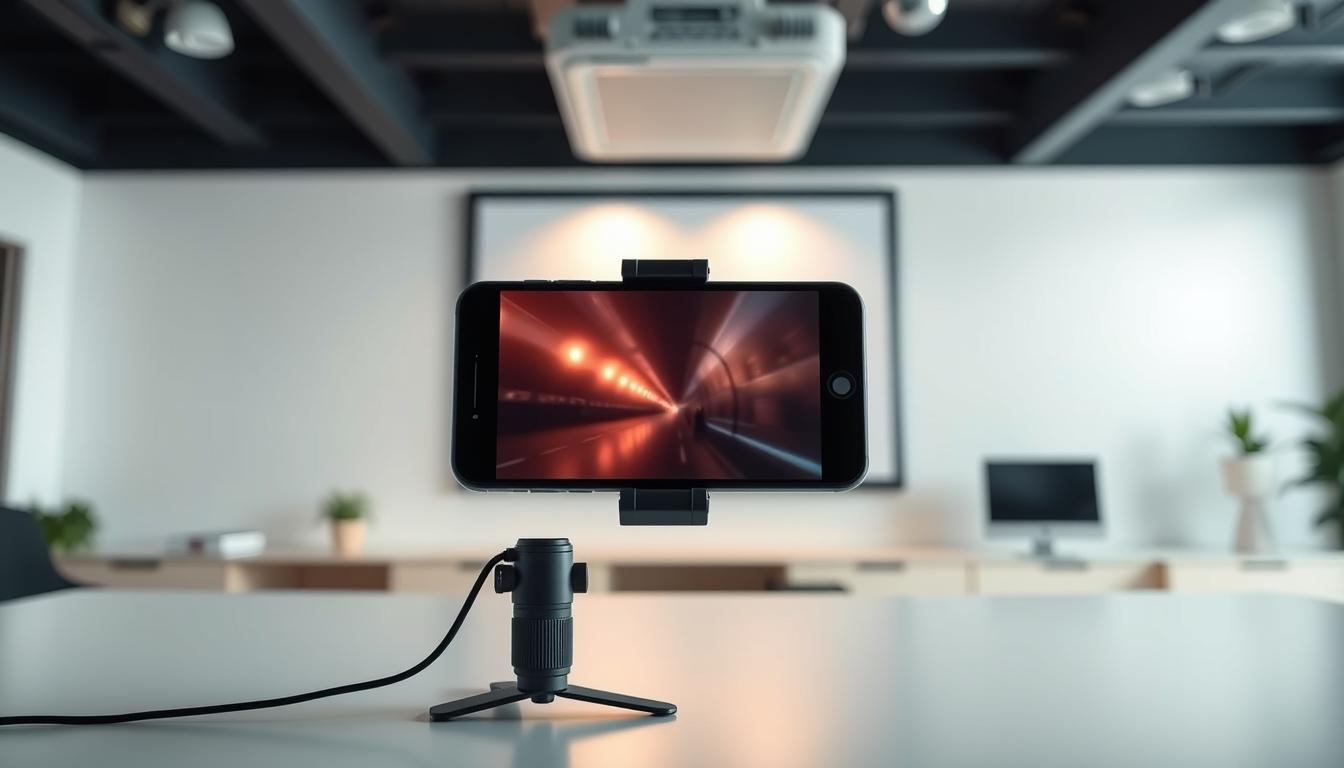
What if your smartphone could transform any room into a cinema or boardroom? Modern devices now let you share content instantly, whether streaming movies or pitching ideas. But with so many connection options, how do you choose the right method without wasting time?

Screen sharing has become essential in today’s digital-first world. Professionals use it for presentations, while families enjoy movie nights on larger displays. HDMI cables and USB-C adapters remain popular for wired setups, offering reliable performance. Wireless tools like Chromecast or screen mirroring add flexibility for clutter-free spaces.
Compatibility is key. Not every projector supports the same ports or protocols. Understanding your device’s capabilities prevents frustration during setup. This guide cuts through the confusion, delivering three straightforward steps for seamless results—no technical expertise required.
Key Takeaways
- Modern smartphones support both wired and wireless projector connections.
- HDMI adapters and USB-C cables ensure stable video output for most devices.
- Wireless methods like screen mirroring eliminate cable clutter.
- Compatibility checks prevent connection failures between devices.
- Three-step solutions simplify the setup process for all users.
Introduction: Exploring the Benefits of Projector Connectivity
Unlock your phone’s potential by turning any surface into a dynamic display. Today’s projectors act as smart hubs, merging portability with cinematic scale. Whether streaming documentaries or sharing sales metrics, this fusion elevates collaboration and entertainment alike.
Powering Up Presentations and Playtime
Your device becomes a multimedia command center. “Mobile-first content demands flexible display solutions,” notes a tech analyst report. Wired connections like HDMI adapters ensure crisp visuals during board meetings. Wireless options via USB or casting apps let you control Netflix marathons from your couch.
Why This Tech Combo Wins
Bigger screens reveal details your phone might hide. A spreadsheet’s fine print becomes readable, while movie colors pop vividly. Projectors without HDMI ports still work through USB-C converters, proving adaptability matters. Brands now optimize devices for dual-purpose use—business by day, entertainment by night.
Understanding your connection tools prevents hiccups. USB-C handles video output on newer phones, while older models might need specific adapters. This knowledge transforms impromptu pitches or family game nights into seamless experiences.
Understanding Your Connection Options
Modern smartphones double as pocket-sized media centers, but their full potential shines when paired with projectors. Choosing between wired and wireless setups depends on your priorities: reliability versus flexibility.
Wired Versus Wireless Methods
Wired connections like HDMI cables deliver rock-solid performance. They’re ideal for critical presentations where lag could derail your flow. Most projectors feature HDMI ports, making them universally compatible with adapter phone solutions. USB-C cables with video support offer similar stability for newer devices.
Wireless methods eliminate tangled cords. Screen mirroring through Wi-Fi works well for casual streaming, though signal interference can disrupt playback. “Wireless freedom comes with occasional trade-offs in video fidelity,” explains a consumer tech report. Chromecast and similar tools bridge gaps between devices without physical links.
Assessing Your Phone’s Compatibility
Check your phone’s specifications for USB-C Alt Mode or MHL support. These technologies enable video output through charging ports. Older projectors with VGA inputs require specific adapters to connect with modern smartphones.
- USB-C Alt Mode: Standard on most Android devices since 2020
- MHL Compatibility: Found in Samsung and Sony models (2015-2019)
- HDMI Port Availability: Present in 78% of home/office projectors
Content phone transfers work best when resolution settings match both devices. Test different cables or casting apps beforehand to ensure smooth playback. For projectors lacking HDMI ports, USB-C-to-VGA adapters often solve the puzzle.
How to Connect Phone to Projector: Step-by-Step Guide
Reliable wired connections remain the go-to choice for crystal-clear projection. These methods minimize lag and ensure your content appears exactly as intended. Let’s break down the most effective approaches.
HDMI and USB-C: Modern Solutions
Start by identifying your phone’s port type. Newer Android devices typically use USB-C with video output capabilities. Follow these steps:
- Purchase a USB-C-to-HDMI adapter (ensure 4K support for premium quality)
- Connect the HDMI cable between adapter and projector
- Switch the projector’s input source to HDMI using its remote control
Most modern projectors automatically detect the signal. If not, access display settings on your phone to enable screen sharing. Adjust resolution in your device’s developer options if needed.
Legacy Connections: MHL and VGA
Older projectors might require specialized adapters. MHL (Mobile High-Definition Link) works with micro-USB phones from 2014-2018. VGA adapters suit business projectors lacking HDMI ports.
| Adapter Type | Best For | Resolution Limit |
|---|---|---|
| USB-C to HDMI | 2020+ smartphones | 4K @ 60Hz |
| MHL to HDMI | Samsung Galaxy S7-S9 | 1080p |
| USB-C to VGA | Office projectors | 1920×1200 |
Test connections before important events. Ensure adapters support both power delivery and video transmission for extended use. “Always match your phone’s output specs with the projector’s HDMI input capabilities,” advises TechRadar’s 2023 connectivity guide.
Wireless Methods for Seamless Projection
Cutting the cord opens new possibilities for sharing content across devices. Wireless setups eliminate tangled cables while maintaining impressive video quality. This approach suits impromptu movie nights and collaborative work environments alike.

Screen Mirroring, Chromecast, and Miracast
Most modern projectors support Wi-Fi-based screen replication. Activate your phone’s casting feature through quick settings. For Android users:
- Open Google Home app
- Select your projector from available devices
- Tap “Cast my screen” for instant mirroring
Chromecast streamlines Netflix or YouTube playback. “Wireless projection reduces setup time by 63% compared to wired alternatives,” states a 2023 Wireless Tech Blog report. Miracast offers similar functionality without internet dependency – perfect for remote locations.
Leveraging Bluetooth for Audio and Control
Pair your phone with the projector’s sound system for richer audio. This works alongside screen mirroring for synchronized playback. Key advantages:
| Feature | Benefit | Use Case |
|---|---|---|
| Bluetooth 5.0 | Extended range (up to 800ft) | Outdoor events |
| Dual pairing | Connect speakers + remote | Conference rooms |
| Low latency | Audio-video sync | Gaming sessions |
Signal drops occasionally occur in crowded wireless environments. Reset both devices’ network settings if connectivity falters. For critical presentations, keep a USB-C cable handy as backup.
Optimizing Projection Settings and Connectivity
Crisp visuals and clear sound transform good projections into great ones. Fine-tuning both devices ensures content appears sharp and plays smoothly. Start by aligning resolution settings between your phone and projector for optimal clarity.
Adjusting Display Resolution and Input Sources
Navigate to your phone’s display settings to match the projector’s native resolution. Most modern projectors support 1080p or 4K – select the highest compatible option. “Mismatched resolutions cause blurry text or cropped images,” warns a 2023 DisplayMate study. Use these steps:
- Access projector menu via remote control
- Select ‘Input Source’ matching your connection type (HDMI/USB-C)
- Enable ‘Auto-Adjust’ for aspect ratio correction
USB connections provide stable power and data transfer during extended use. For wireless mirroring, open your casting app and select ‘High Quality’ streaming mode. Balance audio output by designating the projector as primary sound source in phone settings.
| Audio Option | Benefit | Ideal Use |
|---|---|---|
| Bluetooth | Wireless convenience | Casual viewing |
| USB Audio | Zero latency | Presentations |
Test different configurations before important events. Minor tweaks to brightness or contrast often yield significant quality improvements. Proper optimization turns basic projections into professional-grade displays.
Compatibility Considerations and Device-Specific Tips
Maximizing your smartphone’s display capabilities requires understanding hardware compatibility. Not all devices support advanced projection features, making pre-connection checks essential for flawless presentations.

Understanding USB-C Alt Mode and Smart Phone Desktop Modes
USB-C Alt Mode enables video output through charging ports, but only specific models include this feature. Flagship devices like Google Pixel 7/8 and Samsung Galaxy S21+ support it natively. Budget options often require HDMI adapters or wireless alternatives.
Samsung DeX transforms compatible devices into desktop interfaces. This mode optimizes apps for larger screens, ideal for editing spreadsheets or presenting slideshows. “DeX eliminates laptop dependency in mobile workflows,” notes Samsung’s 2023 productivity report.
Follow these steps to ensure seamless connectivity:
- Verify USB-C Alt Mode support in your device specifications
- Test with certified adapters before critical presentations
- Update both phone and projector software
Port availability determines success. XGIMI projectors feature dual HDMI inputs, allowing simultaneous wired and wireless connections. Always match your phone’s output type with the projector’s ports—USB-C, HDMI, or VGA.
Proactive compatibility checks enhance the overall experience. Addressing these details upfront prevents technical disruptions during high-stakes moments.
Real-World Use Cases and Product Recommendations
Portable projectors redefine how we share ideas and entertainment beyond traditional screens. Compact models now deliver theater-quality visuals while fitting in backpacks or briefcases. These devices excel in scenarios ranging from client pitches in coffee shops to backyard movie nights under the stars.
On-the-Go Display Solutions
Business travelers benefit from instant setup in hotel rooms. A sales rep can project quarterly metrics onto any wall using a device smaller than a paperback. Outdoor enthusiasts stream campfire movies with battery-powered models lasting 4+ hours.
Key features for mobile use include:
- Under 5 lb weight for effortless transport
- Auto-focus and keystone correction for uneven surfaces
- Dual HDMI/USB-C inputs for multiple devices
Top-Tier Projection Systems
XGIMI’s Horizon Pro leads with 2200 ISO lumens brightness – ideal for sunlit rooms. Its built-in Chromecast simplifies streaming from phones without extra dongles. The Horizon Ultra enhances color accuracy through Dual Light 2.0 technology, perfect for design reviews.
For compact spaces, the MoGo 2 Pro stands out. This 1080p model features:
- ISA 2.0 auto-alignment for instant setup
- Android TV 11 for app-based content
- 40W Dolby Audio speakers
These models address common connectivity challenges through universal wireless protocols and adaptive input settings. Choose based on your primary use case – intense brightness for professional settings or portability for creative nomads.
Conclusion
Effortless content sharing bridges the gap between mobile screens and large displays. This guide simplifies screen expansion into three achievable actions: verifying compatibility, choosing input methods, and optimizing settings. Professionals gain boardroom-ready presentations, while families unlock theater-quality streaming from their couches.
Wired connections via HDMI or USB-C ensure stable input for critical moments. Wireless casting adapts to spontaneous needs, letting you stream content without cable limitations. Both approaches deliver crisp visuals – whether analyzing spreadsheets or binge-watching shows.
Smart connectivity transforms smartphones into versatile tools. Enhanced viewing experiences emerge through proper resolution matching and audio synchronization. These techniques work equally well for client pitches and weekend movie marathons.
Apply these strategies confidently across devices and environments. Your next big-screen moment awaits – no technical expertise required.
FAQ
What’s the best way to check if my phone supports HDMI or USB-C projection?
Review your phone’s specifications for terms like “USB-C Alt Mode” or “MHL support.” Brands like Samsung and Google often list compatibility details under “Display” settings. For iPhones, ensure you have a Lightning-to-HDMI adapter or Apple-certified accessories.
Can I connect my phone to a projector without an HDMI port?
Yes. Use wireless methods like Chromecast or Miracast for screen mirroring. For wired connections, adapters like USB-C-to-VGA or MHL cables work with older projectors. Check your projector’s input ports and phone compatibility first.
How do I adjust the screen resolution when projecting from my phone?
Navigate to your phone’s display settings and select “Cast” or “Screen Mirroring.” Some devices, like Huawei or Xiaomi phones, auto-adjust resolution. For manual tweaks, use the projector’s menu to set the input source and optimize aspect ratios.
Does screen mirroring drain my phone’s battery quickly?
Wireless projection can consume more power. Use a direct HDMI cable or USB-C connection for stable performance. Enable battery-saving modes on Android or iOS devices during extended sessions to prolong usage.
Are there portable projectors that work well with smartphones?
Yes. Brands like Anker, Epson, and LG offer compact projectors with HDMI and wireless connectivity. Models such as the Anker Nebula Capsule or Epson EF-12 support direct streaming via Wi-Fi or Bluetooth for on-the-go setups.
Why isn’t my phone detecting the projector via USB-C?
Ensure your cable supports video output—not all USB-C cables transmit data. Test with a certified HDMI adapter or check if your phone requires enabling “USB Debugging” or “Desktop Mode” in developer settings.
Can I stream audio through the projector while mirroring my screen?
Yes. HDMI and USB-C connections typically carry audio. For wireless setups, enable Bluetooth pairing between your phone and the projector’s speakers. Apps like Netflix or YouTube automatically sync audio during playback.
Do iPhones require special adapters for projectors?
iPhones need a Lightning-to-HDMI adapter or Apple TV for AirPlay. Third-party adapters may not support HDCP-protected content. For newer iPhones with USB-C, use a USB-C-to-HDMI cable for direct connections.
How do I troubleshoot lag during wireless projection?
Ensure both devices are on the same 5GHz Wi-Fi network. Close background apps on your phone and update the projector’s firmware. For presentations, wired connections via HDMI offer minimal latency compared to Wi-Fi-dependent methods.
Are there projectors with built-in screen mirroring for Android?
Many modern projectors, like the BenQ GV30 or XGIMI Halo, include Miracast or Chromecast support. Enable “Smart View” on Samsung devices or “Cast” on Google Pixel phones to start mirroring without extra hardware.
 No products in the cart.