


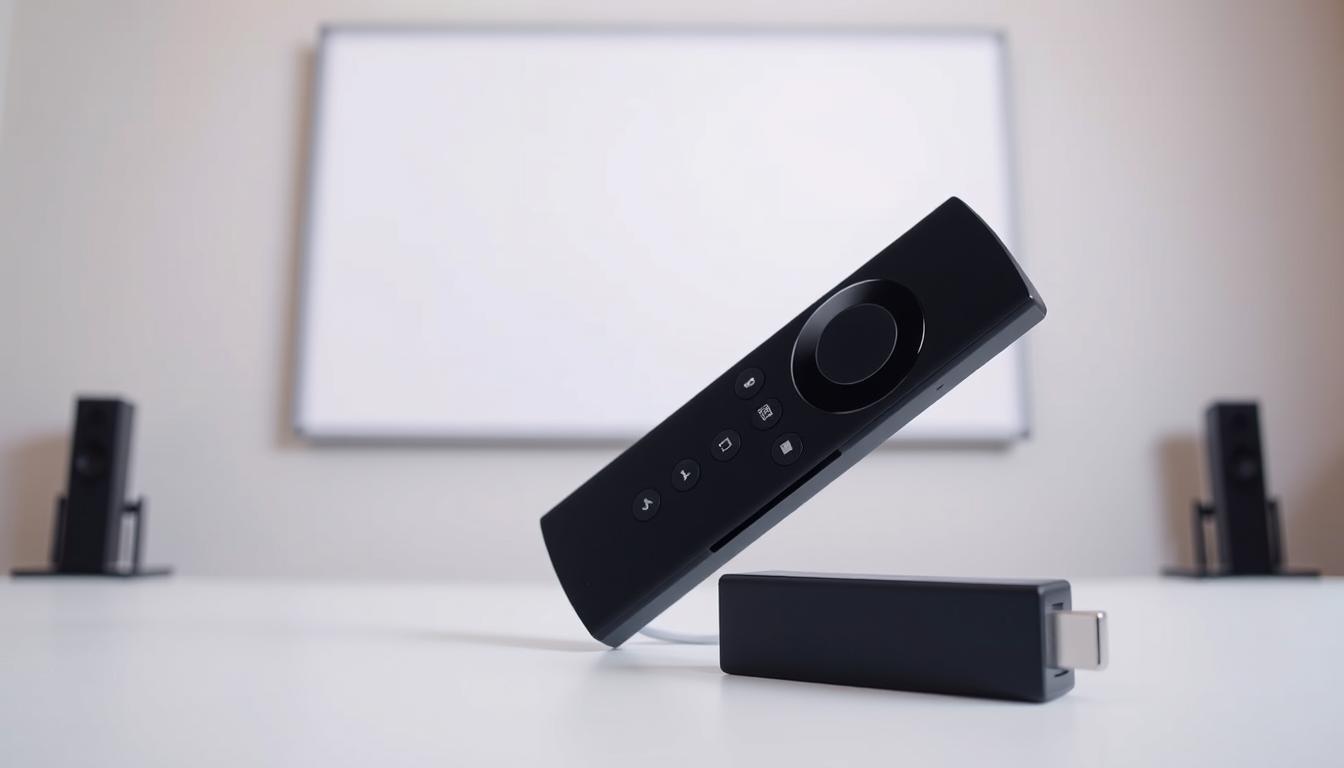
“Innovation distinguishes between a leader and a follower,” Steve Jobs once remarked. This philosophy echoes in Amazon’s Fire TV Stick, a pocket-sized powerhouse redefining home entertainment. Compact yet mighty, this streaming device transforms ordinary TVs into smart hubs bursting with content.

The Fire Stick plugs directly into an HDMI port, instantly unlocking access to Netflix, YouTube, and countless streaming platforms. Its Bluetooth remote eliminates cable clutter while offering voice-command convenience. Whether you’re binge-watching shows or streaming live sports, this device delivers crisp visuals through seamless Wi-Fi connectivity.
What truly sets the Fire Stick apart is its portability. Take it from living rooms to backyard projectors without missing a beat. With over 1.5 million movies and TV episodes available, your viewing experience adapts to any screen – no smart TV required.
Key Takeaways
- HDMI compatibility turns standard TVs into smart entertainment centers
- Bluetooth remote enables wireless navigation and voice commands
- Access major streaming platforms with single-device convenience
- Portable design works with projectors for large-screen experiences
- Wi-Fi connectivity ensures smooth playback across locations
Introduction to Amazon Firestick and Streaming
Modern entertainment thrives on instant access. The Amazon Fire TV Stick delivers this through compact hardware packed with smart capabilities. This streaming device bridges the gap between basic TVs and premium digital libraries.
Overview of Firestick Technology
The Amazon Fire TV Stick uses a quad-core processor for smooth performance. Built-in Wi-Fi connects to home networks, streaming content in HD or 4K. Its Fire OS platform organizes apps like Netflix and Prime Video into one dashboard.
Voice search through Alexa simplifies finding shows across services. Regular updates add new features without hardware changes. This approach keeps the device relevant as streaming evolves.
The Rise of Streaming Devices
Over 60% of U.S. households now use streaming devices. Cord-cutters prefer flexible options over cable packages. The Amazon Fire Stick competes with Roku and Chromecast through deeper Alexa integration.
Key advantages include parental controls and personalized recommendations. Users switch between live TV and on-demand movies effortlessly. These features make the Fire Stick a central hub for modern home entertainment.
How Does a Firestick Work
Streaming magic starts with smart hardware design. The Fire Stick combines compact engineering with robust performance, transforming basic screens into entertainment hubs. Let’s explore what powers this streaming marvel.

Internal Components and Operating System
The Fire Stick’s 1 GB memory handles app multitasking, while 8 GB storage stores login credentials and cached content. A VideoCore4 GPU processes 1080p video effortlessly. Dual-band Wi-Fi antennas maintain stable connections across crowded networks.
Amazon’s Fire OS – a customized Android system – manages these resources efficiently. This lightweight operating system prioritizes streaming performance while supporting regular security updates. Voice-enabled models include microphone hardware for Alexa integration.
Navigating the Fire OS Interface
First-time users complete a four-step setup: HDMI connection, Wi-Fi pairing, Amazon account login, and preference selection. The home screen displays trending shows across installed apps. Horizontal menus categorize content by genre, service, or watchlist status.
Bluetooth remotes eliminate line-of-sight limitations. Hold the voice button to search titles without typing. Recent updates added user profiles and ambient home screen themes. All navigation choices sync with Amazon’s content recommendation algorithms.
Connecting Your Firestick to a Projector
Projectors unlock cinematic experiences beyond traditional screens. Modern models with HDMI ports easily integrate with streaming devices like the Amazon Fire Stick. This setup transforms blank walls into vibrant entertainment hubs.

Projector Compatibility and HDMI Port Requirements
Most projectors manufactured after 2015 feature HDMI inputs. Verify your model supports HDCP 2.2 for 4K content. The Fire Stick requires a standard HDMI port – check its orientation before connecting.
Power considerations differ from TV setups. Use the included USB cable with the power adapter, not the projector’s USB port. This ensures stable performance during extended streaming sessions.
Step-by-Step Connection Guide
- Insert the Fire Stick into the projector’s HDMI port
- Connect the USB power cable to an outlet
- Switch the projector to correct HDMI input
- Complete on-screen setup using the Bluetooth remote
For recessed ports, attach the HDMI extender first. This accessory improves remote signal reception and prevents overheating.
Troubleshooting Common Connection Issues
Blank screens often indicate power shortages. Ensure the Fire Stick’s white light remains steady. If audio plays without video, adjust the projector’s resolution settings to match the streaming device.
Update Fire OS through the settings menu if menus appear distorted. For persistent HDMI handshake errors, cycle power to both devices simultaneously.
Key Features and Models of Fire Stick Devices
Streaming enthusiasts face four distinct Fire Stick options, each catering to different needs. Amazon’s lineup ranges from budget-friendly HD models to premium 4K powerhouses. This diversity ensures viewers can match their device to both current setups and future upgrades.

Comparing Different Firestick Models
| Model | Price | Resolution | Audio | Key Features |
|---|---|---|---|---|
| Fire TV Lite | $29.99 | 1080p | Stereo | Basic remote, Alexa voice |
| Fire TV HD | $39.99 | 1080p | Dolby Atmos | TV controls, faster processor |
| Fire Stick 4K | $49.99 | 4K HDR | Dolby Atmos | Wi-Fi 6, HDR10+ |
| 4K Max | $59.99 | 4K HDR | Dolby Atmos | Ambient mode, 16GB storage |
Display, Audio, and Other Key Innovations
Premium models transform viewing with Dolby Vision HDR and HLG video formats. The 4K Max delivers 40% faster streaming than standard 4K models. Its ambient experience displays weather and photo galleries during downtime.
Audio improvements span from basic stereo to theater-grade Dolby Atmos. Higher-end devices support simultaneous connection to multiple Bluetooth speakers. Storage upgrades enable faster app launches and temporary content downloads.
Enhancing Your Streaming Experience at Home
Transforming your living space into a smart entertainment hub requires two key elements: diverse content access and intuitive controls. The Fire Stick delivers both through seamless app integration and voice-enabled navigation.
Accessing Popular Streaming Apps and Services
Top streaming platforms like Netflix and Disney+ sit alongside Prime Video in the Fire Stick’s app library. Amazon Prime members enjoy instant access to exclusive shows and movies, though ads now play unless upgrading to the $2.99 ad-free tier. Budget-conscious viewers can explore Freevee – Amazon’s free service offering thousands of titles supported by commercials.
Integrating Voice Control and Smart Home Features
The Alexa Voice remote revolutionizes content discovery. Press the microphone button to search across services or adjust volume without typing. “Play Stranger Things on Netflix” activates your show in seconds.
Beyond entertainment, the device connects to smart home systems. View security cameras or dim lights through voice commands while streaming. Personalized recommendations evolve as the system learns your viewing patterns, suggesting new content aligned with your tastes.
FAQ
Can I connect an Amazon Firestick to any projector?
Yes, if your projector has an available HDMI port. The Firestick requires HDMI 1.4 or higher for HD streaming and HDMI 2.0 for 4K Ultra HD content on compatible models like the Fire TV Stick 4K Max. Older projectors without HDMI may need adapters.
What steps ensure smooth Firestick setup with a projector?
Plug the device into the projector’s HDMI port, power it via USB or an outlet, and select the correct input source. Use the remote to connect to Wi-Fi, log in to your Amazon account, and download apps like Prime Video, Netflix, or Disney+.
Why does my Firestick show “No Signal” on the projector?
This often stems from a loose HDMI connection, insufficient power, or incorrect input selection. Ensure the Firestick is fully inserted, powered properly, and the projector is set to the right HDMI channel. Restarting both devices may resolve temporary glitches.
Which streaming services work with Firestick devices?
Popular apps include Prime Video, Netflix, Hulu, HBO Max, and YouTube. The device also supports niche platforms like Crunchyroll and ESPN+. Many services require separate subscriptions, though some free ad-supported channels like Freevee are included.
How does Alexa voice control enhance Firestick streaming?
Hold the remote’s microphone button to search for titles, launch apps, adjust volume, or control smart home devices. For example, saying “Play *The Boys* on Prime Video” starts playback instantly, reducing manual navigation.
What distinguishes Firestick models like the Lite and 4K Max?
The Lite lacks TV controls and 4K support, while the 4K Max offers Wi-Fi 6 compatibility, Dolby Vision, and a faster processor. All models grant access to the same apps, but higher-tier versions deliver better visuals and performance.
Does the Firestick require a high-speed internet connection?
A minimum of 10 Mbps is recommended for HD streaming and 20 Mbps for 4K content. Use a 5 GHz Wi-Fi band or Ethernet adapter (sold separately) for stable performance, especially when using multiple devices simultaneously.
Can I watch Prime Video without an Amazon subscription?
No—Prime Video requires an active Amazon Prime membership. However, the Firestick allows access to other free services like Pluto TV, Tubi, or YouTube, which don’t require subscriptions.
 No products in the cart.