


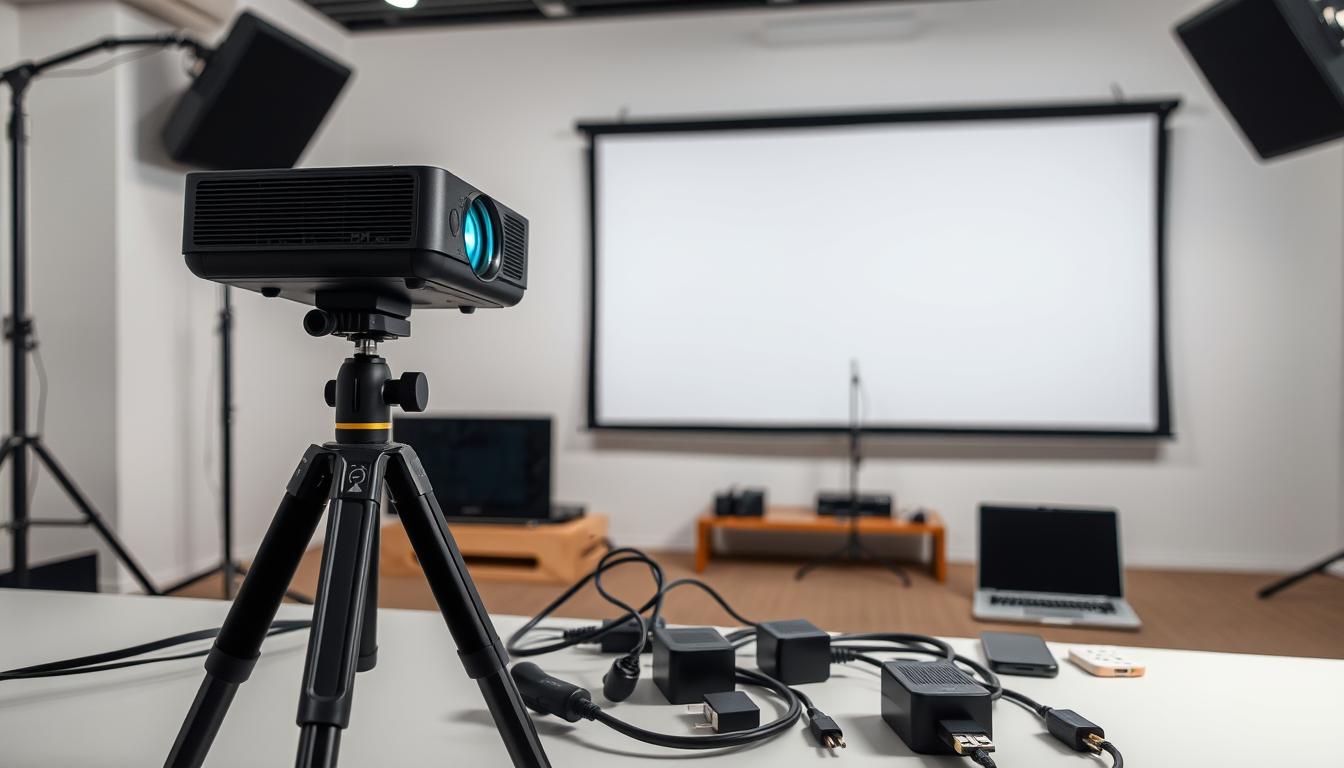
Did you know 74% of U.S. households now use projectors monthly for streaming, gaming, or presentations? Modern devices like XGIMI models have transformed these tools from clunky machines to sleek hubs for universal connectivity. Whether you’re hosting movie night or leading a boardroom meeting, linking your system is simpler than ever.

Today’s projectors work with smartphones, laptops, and gaming consoles through HDMI, USB-C, or wireless tech. Brands like Happrun design models focused on plug-and-play simplicity—no IT degree required. A high-quality screen paired with vibrant video output turns any wall into a cinema or slideshow canvas.
This guide cuts through the confusion. We’ll explain cables, adapters, and screen-mirroring tricks in plain English. You’ll learn why classrooms and offices increasingly choose projectors over TVs for sharing content. Plus, discover pro tips from Happrun’s team at happrunprojector.com for lag-free streaming.
Key Takeaways
- Modern projectors support wired and wireless links for phones, laptops, and gaming systems
- HDMI and USB-C ports ensure compatibility with most devices
- Proper screen selection enhances video quality and viewing angles
- Wireless options reduce clutter while maintaining sharp content display
- Brands like Happrun prioritize user-friendly setups for home and office use
Understanding Your Projector’s Connectivity Options
Your projector’s array of ports and wireless features unlock a world of high-definition content sharing. Modern models typically include an HDMI port for crystal-clear video and audio transmission—perfect for streaming devices and gaming consoles. USB-C ports join the party, offering reversible plug designs that work with newer laptops and tablets.
Three main connection types dominate today’s setups. Wired options like HDMI and VGA handle physical links to computers and media players. Wireless tech uses Wi-Fi networks or Bluetooth to mirror screens without cables. Some systems even support direct casting through apps like Miracast or AirPlay.
Each port serves specific purposes. The HDMI port remains the gold standard, supporting 4K video and surround sound. USB-C doubles as a power source while transferring data. Wireless connections shine in clutter-free environments, though they require stable network signals.
Choosing the right setup depends on your devices and needs. Gamers prioritize low-latency HDMI links. Office teams might prefer wireless screen sharing across multiple laptops. Always check your equipment’s output options before deciding—matching ports ensures smooth compatibility.
Preparing Your Devices and Necessary Cables
Ever struggled with mismatched ports when setting up your gear? Start by gathering these essentials: an HDMI cable for modern devices, a VGA cable for older tech, and reliable adapters. Check your laptop, gaming console, or streaming stick for port types—most newer models use HDMI or USB-C.
HDMI delivers crisp 4K video and audio through one cable, perfect for Fire Sticks or PlayStation. VGA works for basic office setups but needs separate audio. If your MacBook only has USB-C, grab a multi-port adapter from Anker or Belkin.
Quality matters. Thin, coiled cables from AmazonBasics handle 18Gbps speeds without signal loss. Measure your space first—10-foot cables suit most rooms. Avoid bent connectors or frayed ends that cause flickering screens.
XGIMI’s portable models show why prep pays off. Their dual HDMI ports accept gaming consoles and Roku sticks simultaneously. For mixed-device homes, keep both cable types handy. A $15 HDMI-to-VGA adapter bridges old projectors with new laptops effortlessly.
Connect Projector: A Comprehensive Guide
Transform any room into a media hub by following these essential steps. First, power on your devices and link them using an HDMI cable or wireless protocol. Most systems automatically detect the signal, but manual input selection might be needed.
Navigate the projector’s menu to choose the correct input source matching your cable type. For laptops, right-click the desktop and select “Display Settings.” Match your computer’s resolution to the projector’s native specs—usually 1920×1080 for full HD models.
Choose between duplicate or extended display modes based on your needs. Duplicate mirrors your screen, while extended lets you drag windows between monitors. Gamers should enable “Game Mode” if available to reduce lag.
No signal? Check cable connections first. Still stuck? Cycle through input sources using the remote. For advanced tweaks like color calibration, visit Happrun’s support page at happrunprojector.com.
Finish by testing different content types—stream a show, open a slideshow, or launch a game. Proper setup ensures sharp text and vibrant colors every time. Now grab popcorn or cue your presentation—you’re ready to shine!
Exploring Wired Connection Methods
Picture this: your movie night starts in 30 seconds, but the screen stays stubbornly blank. Wired connections solve this drama with reliable, high-quality links. Let’s break down the two heavyweights: HDMI cable and VGA.
For crystal-clear image and sound, HDMI is your MVP. Grab a 4K-ready cable if your devices support it. Plug one end into your laptop’s HDMI port and the other into the port projector labeled “HDMI 1.” Most systems auto-detect the signal—just press “Source” on the remote if needed.
VGA works for older tech but needs a separate audio cable. Connect the blue connector to your computer and the matching port projector. While maxing out at 1080p, this method shines in boardrooms with legacy equipment.
Pro tips for both methods:
- Match your device’s resolution to the projector screen in display settings
- Secure cables firmly to avoid flickering
- Use gold-plated connectors for better signal
HDMI delivers vibrant colors and surround sound—ideal for Netflix marathons. VGA offers bulletproof stability during PowerPoint marathons. If your image looks fuzzy, check cable connections first before diving into settings. Happy viewing!
Utilizing Wireless Connection Options
Ditch the cable jungle—modern wireless technology lets you beam content across rooms effortlessly. Cutting cords means no tripping hazards during movie nights and quick transitions between presenters in meetings. This method shines for impromptu setups where portability matters most.
Start by checking your devices’ capabilities. Most smart TVs and streaming sticks like Roku use built-in Wi-Fi. Enable screen mirroring on your phone or laptop—look for “Cast” or “AirPlay” options. Bluetooth connections work best for audio-focused setups, pairing speakers directly to your system.
Chromecast and Fire Stick users simply plug the dongle into an HDMI port. Download the companion app to manage wireless streaming from any corner of the room. For corporate environments, enterprise-grade solutions like Barco ClickShare ensure secure screen sharing across multiple laptops.
While cables guarantee zero lag, technology advancements have narrowed the gap. Dual-band routers (2.4GHz and 5GHz) minimize interference for smoother video. Always position your router within 30 feet of the display for optimal experience.
Stuck troubleshooting? Reboot both devices first—90% of glitches vanish this way. Update firmware through your projector’s settings menu if images stutter. For persistent issues, switch Wi-Fi channels or use an Ethernet adapter for hybrid wired/connection setups.
Optimizing Display and Audio Settings
Getting the perfect picture and sound at home is easier than you think. Start by accessing your device’s settings menu. Match the resolution to your screen’s native specs—most modern systems default to 1920×1080 for crisp image quality.
Calibrate brightness and contrast using built-in test patterns. Aim for deep blacks without losing shadow detail. For color accuracy, reference streaming service calibration tools or use a colorimeter. Many devices offer preset modes like “Movie” or “Vivid”—choose “Cinema” for truer tones.
Don’t neglect audio tweaks. Position speakers at ear level and enable surround sound if available. Balance dialogue clarity with bass response using the equalizer. Night mode reduces sudden loud noises for late-night viewing.
Test different content types after adjustments. Streaming platforms like Netflix have specific display recommendations. If colors look off, reset to factory settings and recalibrate. Most issues stem from incorrect HDMI configurations or outdated firmware.
Fine-tuning both visual and audio settings creates theater-like immersion at home. With these pro tips, your next movie night or gaming session will shine brighter than ever!
Expert Tips from Happrun for a Seamless Setup
Professional setups demand smart choices from the start. Happrun engineers recommend adapters with 4K support for crisp video output across laptops and streaming devices. Their latest models include universal ports that handle HDMI, USB-C, and legacy connections effortlessly.
Always test your device compatibility before presentations. Check resolution settings and update firmware through Happrun’s mobile app. For mixed-brand environments, use gold-plated adapters to prevent signal drops during critical moments.
Three pro moves ensure flawless results:
- Position your system within 15 feet of Wi-Fi routers for stable wireless streaming
- Enable “EDID Mode” in display settings to auto-match screen resolutions
- Run audio/video tests using free calibration tools from happrunprojector.com
Happrun’s setup philosophy focuses on minimizing steps without sacrificing quality. Their team suggests labeling cables and creating preset profiles for different devices. First-time users appreciate the intuitive menu guides that explain every output option.
This article only scratches the surface of expert techniques. Visit Happrun’s knowledge base for advanced troubleshooting flowcharts and pro-grade maintenance schedules. Their 24/7 support team helps perfect your setup—whether you’re teaching algebra or hosting Oscar night.
Conclusion
Creating seamless presentations and movie nights hinges on smart connections. Whether using HDMI cables for 4K clarity or wireless tech for clutter-free streaming, matching your devices to the right method ensures vibrant visuals and crisp audio. Remember to check port types and resolution settings before hitting “play.”
Quality adapters and proper cable management prevent most technical hiccups. If issues arise, revisit display settings or test alternative connections. Happrun’s pro tips—like firmware updates and signal optimization—help maintain flawless performance across gaming marathons or quarterly reports.
Experiment with different setups to discover your ideal home theater or office solution. For deeper insights into screen calibration and advanced configurations, explore Happrun’s expert guides at happrunprojector.com. A well-tuned system transforms any space into an immersive experience, proving that great tech should work for you—not the other way around.
Thanks for choosing this guide! Now go enjoy your upgraded viewing adventures.

 No products in the cart.